Granting access to Google Analytics, Google Tag Manager, Google Business Profile, and Google Search Console is a routine task when onboarding an agency or a new team member. Each platform has its own access management section, and access is tied to the user's Google account rather than their email provider. This guide covers the steps for each platform separately.
How do you add a user to Google Analytics (GA4)?
- Sign in to GA4 at analytics.google.com and select the correct property.
- Click the Admin cog in the bottom-left corner.
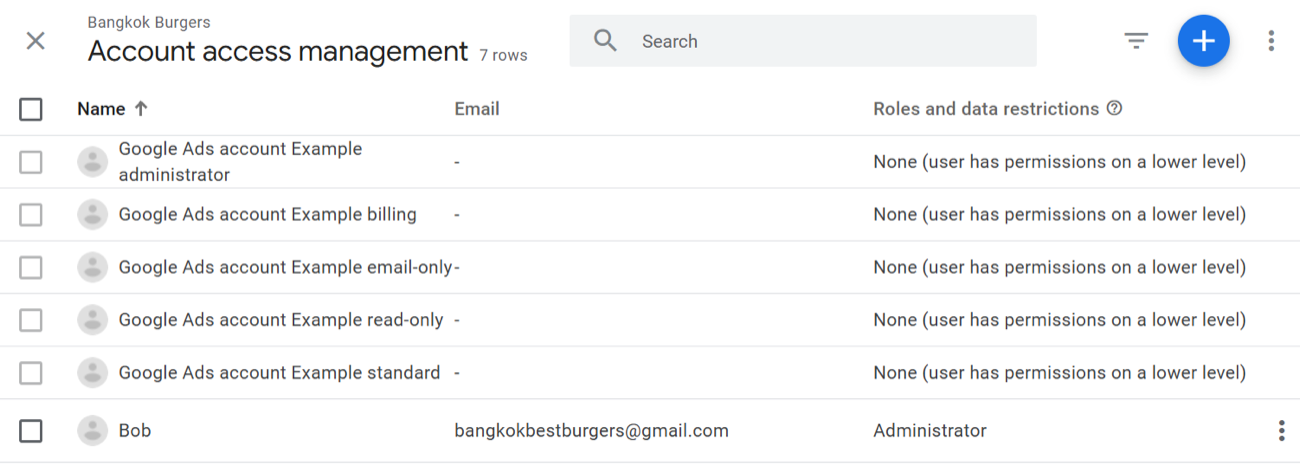
- Under the Property column, click Property Access Management.
- Click the blue plus (+) button in the top-right corner and select Add Users.
- Enter the user's Google account email address and select their role. Viewer is sufficient for reporting access; Editor allows configuration changes; Administrator grants full control.
- Click Add to confirm.
How do you add a user to Google Tag Manager?
- Go to tagmanager.google.com and open the relevant container.
- Click Admin in the top navigation bar.
- Under the Account column, click User Management.
- Click the blue plus (+) button and enter the user's Google account email.
- Set the Account permission (User or Administrator) and, if needed, the Container permission (Read, Edit, Approve, or Publish). Most users only need Read access at the container level unless they are actively managing tags.
- Click Invite to send access.
How do you add a user to Google Business Profile?
- Go to business.google.com and select the correct business profile.
- Click the three-dot menu (more options) in the top-right corner and select Business Profile Settings.
- Select Managers.
- Click the person icon with a plus symbol to add a new user.
- Enter the user's Google account email and select their role: Owner (full access including deleting the profile), Manager (most settings), or Site Manager (limited access for posting and responding to reviews only).
- Click Invite. The user will receive an email to accept the invitation.
How do you add a user to Google Search Console?
- Go to search.google.com/search-console and select the correct property.
- Click Settings in the left-hand menu.
- Click Users and Permissions.
- Click Add User.
- Enter the user's Google account email and select their permission level: Full (can view all data and take actions such as submitting URLs) or Restricted (can view most data but cannot take actions).
- Click Add to confirm.
What if the user does not have a Google account?
All four platforms require the user to have a Google account. If the person uses a Microsoft, Apple, or other email address, they can create a free Google account linked to that email address without needing a Gmail address. See the related article on accessing Looker Studio with a Microsoft email for the step-by-step process, which applies equally to these platforms.