Comments on Facebook and Instagram ads are public by default, which means negative or spammy comments are visible to anyone who sees the ad. Hiding or deleting unwanted comments is a standard part of managing paid campaigns, and Meta provides options to do both from within Ads Manager and from the ad itself.
What is the difference between hiding and deleting a comment?
Hiding a comment makes it invisible to everyone except the person who wrote it and their friends. They will not know it has been hidden, which avoids escalation. The comment remains in Meta's system and can be unhidden at any time.
Deleting a comment removes it permanently and cannot be undone. Hiding is generally preferable for borderline comments or complaints that could generate a backlash if the person realises they have been silenced. Deleting is more appropriate for spam, irrelevant promotional links, or content that violates Meta's community standards.
How do you hide a comment on a Facebook ad?
- Go to Meta Ads Manager and open the campaign containing the ad.
- Click on the ad name to open the ad preview, then click on the ad post link to view it with its comments.
- Hover over the comment you want to hide and click the three-dot icon that appears to the right of it.
- Select Hide comment. The comment will immediately become invisible to the public.
How do you delete a comment on a Facebook ad?
Follow the same steps as hiding: open the ad post, hover over the comment, and click the three-dot icon. Select Delete instead of Hide. You will be asked to confirm.
Once deleted, the comment cannot be recovered. For comment management at scale, Meta Business Suite provides a unified inbox where comments across Facebook and Instagram can be reviewed, hidden, or deleted without navigating to each individual ad.
Can you turn off comments on Facebook ads?
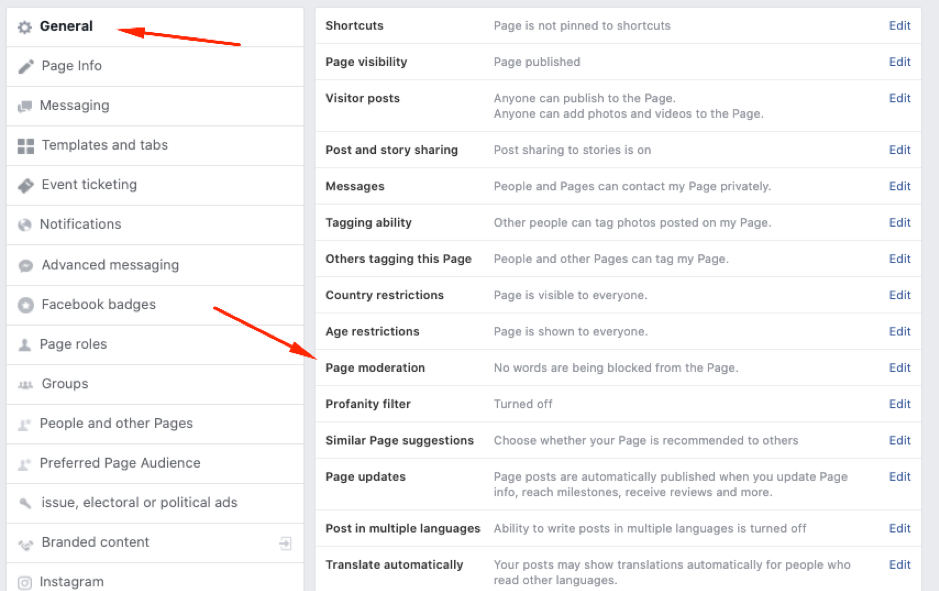
Meta does not currently offer a native option to disable comments on ads entirely. However, Page admins can set up profanity filters and keyword block lists in Page Settings under Audience Optimisation and Content, which automatically hides comments containing specified words. For campaigns with high comment volume or a history of negative engagement, setting up keyword filters before the campaign goes live is more efficient than managing comments manually after the fact.