Facebook Business Manager (now part of Meta Business Portfolio) is the central hub for managing your Facebook Page, ad accounts, pixels, and team access permissions. Setting it up correctly from the start avoids access problems later and ensures that assets belong to your business rather than to an individual personal account. This guide walks through creating a Business Manager account, adding your Page, connecting an ad account, and inviting team members.
How do you create a Business Manager account?
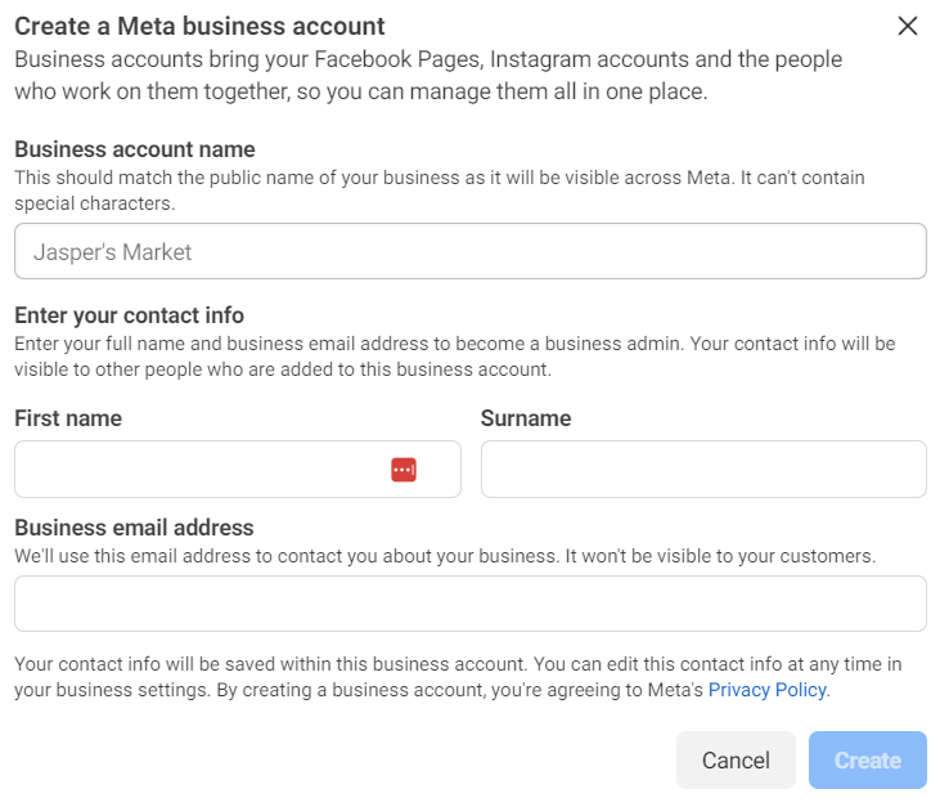
- Go to business.facebook.com in your browser. You must be signed into a personal Facebook account to proceed: Business Manager is created under your personal account but operates as a separate entity.
- Click Create Account.
- Enter your business name, your name, and your business email address. Click Next.
- Complete the business details form (address, phone number, website) and click Submit.
- Check the business email you entered for a confirmation email from Meta and click the verification link.
How do you add your Facebook Page to Business Manager?
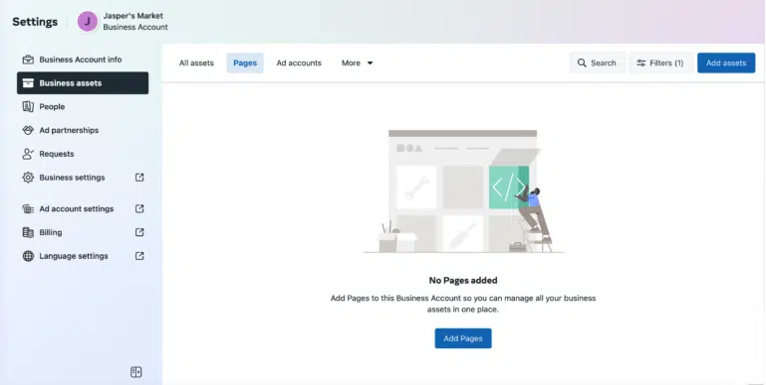
- In Business Manager, click the Settings icon (cog) in the top right, then go to Business Settings.
- In the left menu, click Pages under Accounts.
- Click Add, then choose Add a Page.
- Enter the name or URL of your Facebook Page and click Add Page. You must be an admin of the Page to claim it.
How do you add an ad account?
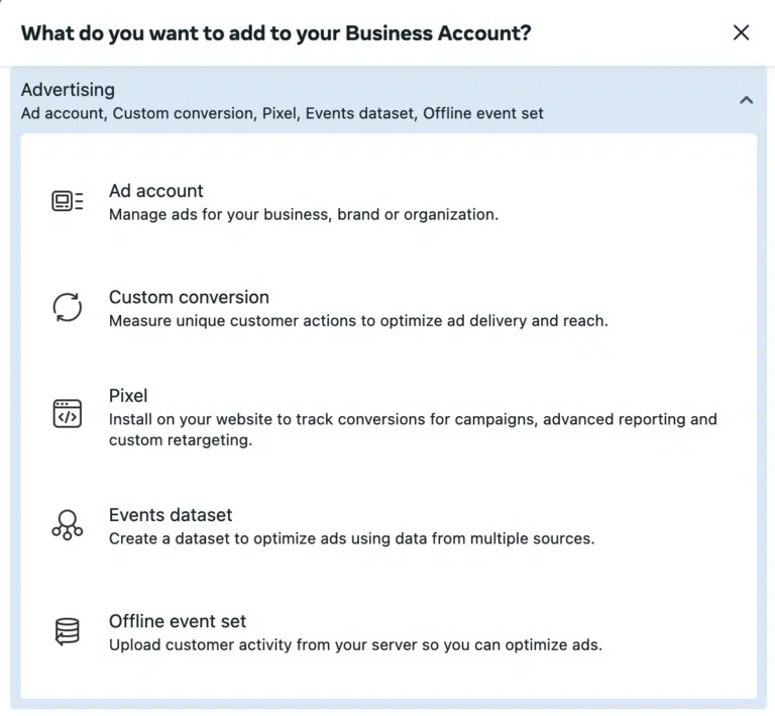
- In Business Settings, click Ad Accounts under Accounts in the left menu.
- Click Add and choose one of the three options: Create a New Ad Account (for a fresh account), Add an Ad Account (to claim an existing account by its ID), or Request Access to an Ad Account (to gain access to an account owned by another business).
- If creating a new account, enter an account name, select your time zone and currency, then click Create Ad Account.
- Add a payment method to the new ad account under the Billing section of Meta Ads Manager before running any campaigns.
How do you invite team members or an agency?
Go to Business Settings, then click People under Users in the left menu. Click Add, enter the person's work email address, and select their role (Employee access or Admin access). On the next screen, assign them to the specific Pages, ad accounts, or other assets they need to access and set their permission level for each.
They will receive an email invitation to accept. For granting access to an external agency rather than an individual, use the Partners section instead: click Add, then enter the agency's Business Manager ID, which allows them to access assets without requiring individual employee accounts in your Business Manager.